> ## Documentation Index
> Fetch the complete documentation index at: https://docs.lyzr.ai/llms.txt
> Use this file to discover all available pages before exploring further.
# Improvement Engine
> Monitor agent performance, detect issues, and get AI-powered improvement suggestions.
The Improvement Engine monitors your registered agents continuously, detects quality and performance issues from live traces, and generates hardening suggestions to improve agent behavior over time.
It checks for a range of issues across your agent's behavior - including hallucinations, low task completion, Knowledge Base retrieval failures, tool call errors, and response relevancy. Each issue is scored, categorized by severity, and tied back to the trace that surfaced it. When patterns emerge across multiple traces, the engine generates an Agent Hardening suggestion that proposes specific changes to the agent's goal and instructions to address the root cause.
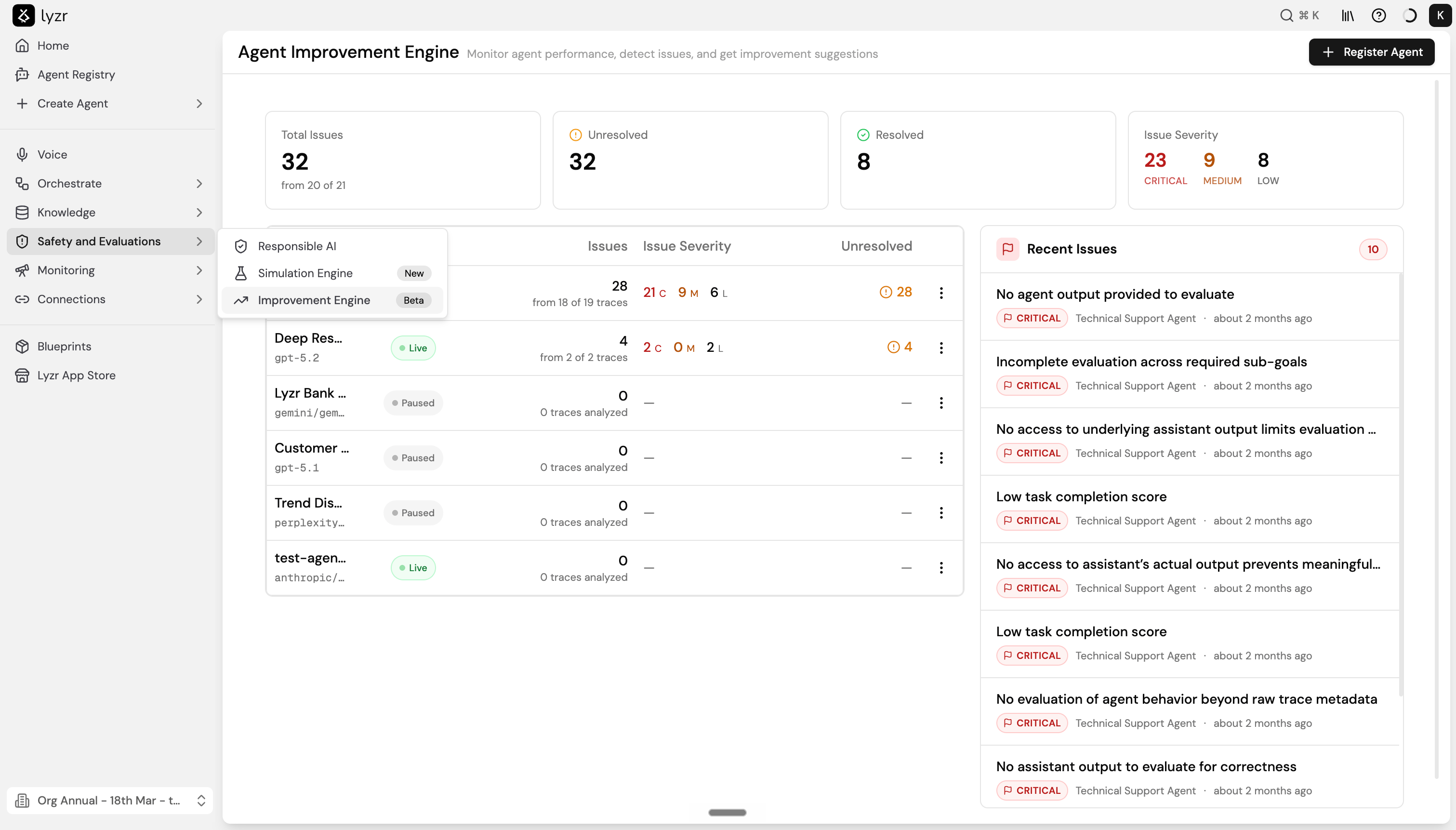
Access it via **Safety and Evaluations > Improvement Engine** from the sidebar.
 ## Registering an agent
Only registered agents are monitored. To register an agent:
1. Select **+ Register Agent** in the top right.
2. Choose an agent from the **Agent** dropdown.
3. Toggle **Automatic analysis** on to run evaluation on a schedule.
4. If automatic analysis is on, set the frequency: Every hour, Every 3 hours, Every 6 hours, Every 12 hours, Daily, Weekly, or Custom.
5. Select **Register Agent**.
## Registering an agent
Only registered agents are monitored. To register an agent:
1. Select **+ Register Agent** in the top right.
2. Choose an agent from the **Agent** dropdown.
3. Toggle **Automatic analysis** on to run evaluation on a schedule.
4. If automatic analysis is on, set the frequency: Every hour, Every 3 hours, Every 6 hours, Every 12 hours, Daily, Weekly, or Custom.
5. Select **Register Agent**.
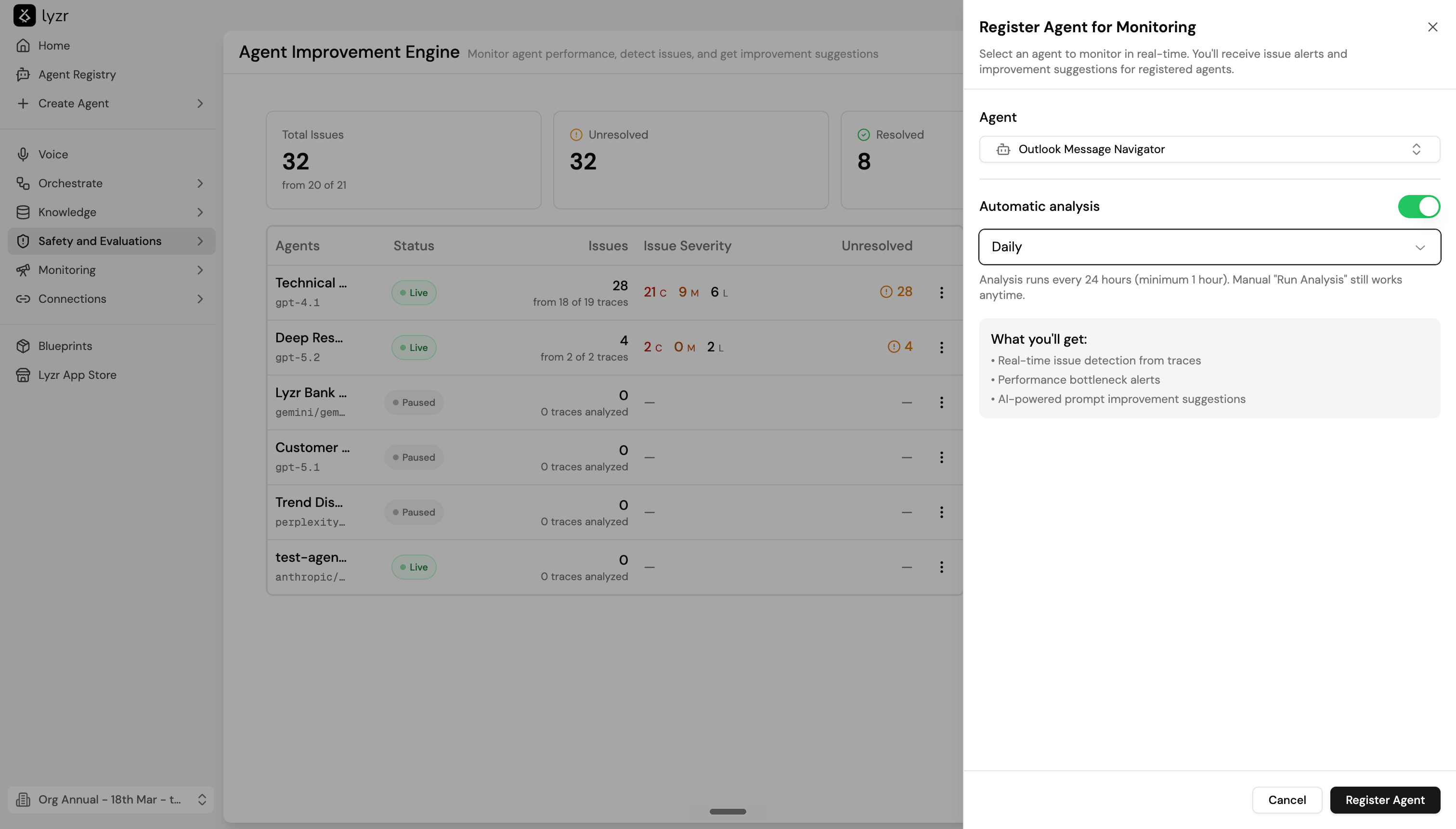 Once registered, the agent appears in the agents list. Analysis begins at the next scheduled run. You can also trigger analysis manually at any time from the agent's detail view without waiting for the schedule.
Registering an agent gives you:
* Real-time issue detection from traces
* Performance bottleneck alerts
* AI-powered prompt improvement suggestions
To pause monitoring for an agent without removing it, select the three-dot menu on its row and choose **Pause**. Paused agents retain their issue history but stop receiving new analysis runs.
## Dashboard overview
The main dashboard gives a cross-agent view of all registered agents.
**Summary stats** across the top show total issues from all registered agents, split into Unresolved and Resolved counts, with a severity breakdown of Critical, Medium, and Low.
**The agents table** lists each registered agent with:
| Column | Description |
| ------------------ | ---------------------------------------------------------------------- |
| **Status** | Live (actively monitored) or Paused |
| **Issues** | Total issues detected and how many of the agent's traces were analyzed |
| **Issue Severity** | C / M / L count breakdown of current issues |
| **Unresolved** | Issues still open and needing attention |
**Recent Issues** on the right shows the latest issues across all registered agents, ordered by recency. Each entry shows the issue title, severity tag, the agent it belongs to, and when it was detected. This gives you a single view of what needs attention right now without having to open each agent individually.
## Viewing agent issues
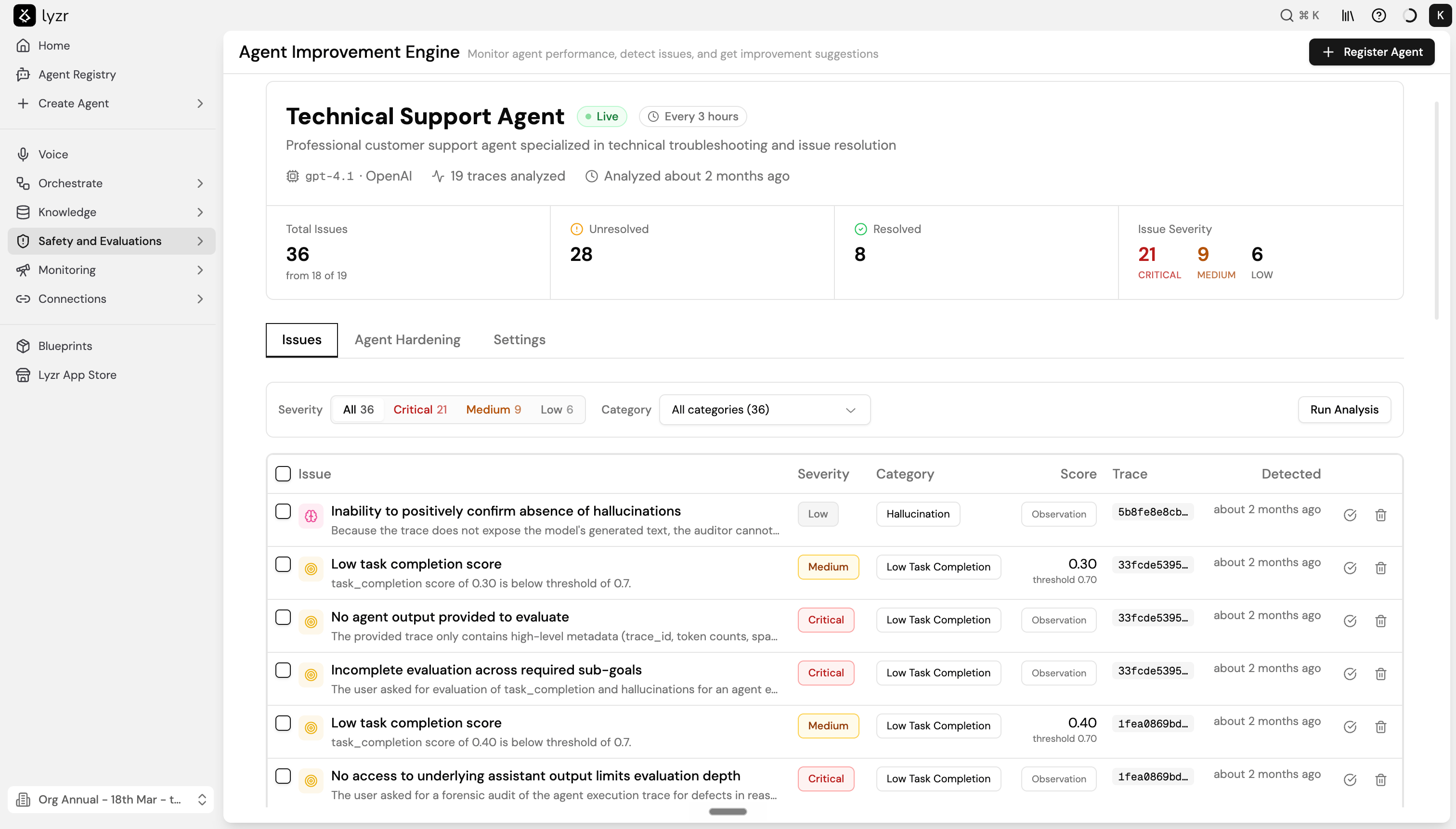
Select any agent from the table to open its detail view. The header shows:
* Agent name and live status
* Analysis interval (for example, Every 3 hours)
* Model and provider
* Total traces analyzed and when analysis last ran
Summary cards below the header show Total Issues, Unresolved, Resolved, and Issue Severity for that specific agent.
### Issues tab
The **Issues** tab lists all detected issues. Use the **Severity** filter to focus on Critical, Medium, or Low issues, and the **Category** dropdown to filter by issue type. Select **Run Analysis** to trigger a fresh analysis run on demand.
Each row in the issues table shows:
| Column | Description |
| ------------ | ----------------------------------------------------------------------------------------------------------------------------------------------------------------------------- |
| **Issue** | Title and a short description of what was detected |
| **Severity** | Critical, Medium, or Low - based on how significantly the issue affects agent quality |
| **Category** | Type of issue - for example, Low Task Completion, Hallucination, Knowledge Base |
| **Score** | Numeric score for the affected metric, with the passing threshold shown below it. A score of 0.30 with a threshold of 0.70 means the agent is well below the acceptable range |
| **Trace** | The trace ID where the issue was detected - select it to open Trace Details |
| **Detected** | When the issue was first seen |
Some issues carry an **Observation** score rather than a numeric score. These are qualitative findings where the engine detected a problem but the issue does not map to a numeric metric - for example, when a trace does not contain enough data to evaluate task completion.
To mark an issue as resolved, select the checkmark icon on its row. To remove an issue from the list entirely, select the delete icon.
Once registered, the agent appears in the agents list. Analysis begins at the next scheduled run. You can also trigger analysis manually at any time from the agent's detail view without waiting for the schedule.
Registering an agent gives you:
* Real-time issue detection from traces
* Performance bottleneck alerts
* AI-powered prompt improvement suggestions
To pause monitoring for an agent without removing it, select the three-dot menu on its row and choose **Pause**. Paused agents retain their issue history but stop receiving new analysis runs.
## Dashboard overview
The main dashboard gives a cross-agent view of all registered agents.
**Summary stats** across the top show total issues from all registered agents, split into Unresolved and Resolved counts, with a severity breakdown of Critical, Medium, and Low.
**The agents table** lists each registered agent with:
| Column | Description |
| ------------------ | ---------------------------------------------------------------------- |
| **Status** | Live (actively monitored) or Paused |
| **Issues** | Total issues detected and how many of the agent's traces were analyzed |
| **Issue Severity** | C / M / L count breakdown of current issues |
| **Unresolved** | Issues still open and needing attention |
**Recent Issues** on the right shows the latest issues across all registered agents, ordered by recency. Each entry shows the issue title, severity tag, the agent it belongs to, and when it was detected. This gives you a single view of what needs attention right now without having to open each agent individually.
## Viewing agent issues
Select any agent from the table to open its detail view. The header shows:
* Agent name and live status
* Analysis interval (for example, Every 3 hours)
* Model and provider
* Total traces analyzed and when analysis last ran
Summary cards below the header show Total Issues, Unresolved, Resolved, and Issue Severity for that specific agent.
### Issues tab
The **Issues** tab lists all detected issues. Use the **Severity** filter to focus on Critical, Medium, or Low issues, and the **Category** dropdown to filter by issue type. Select **Run Analysis** to trigger a fresh analysis run on demand.
Each row in the issues table shows:
| Column | Description |
| ------------ | ----------------------------------------------------------------------------------------------------------------------------------------------------------------------------- |
| **Issue** | Title and a short description of what was detected |
| **Severity** | Critical, Medium, or Low - based on how significantly the issue affects agent quality |
| **Category** | Type of issue - for example, Low Task Completion, Hallucination, Knowledge Base |
| **Score** | Numeric score for the affected metric, with the passing threshold shown below it. A score of 0.30 with a threshold of 0.70 means the agent is well below the acceptable range |
| **Trace** | The trace ID where the issue was detected - select it to open Trace Details |
| **Detected** | When the issue was first seen |
Some issues carry an **Observation** score rather than a numeric score. These are qualitative findings where the engine detected a problem but the issue does not map to a numeric metric - for example, when a trace does not contain enough data to evaluate task completion.
To mark an issue as resolved, select the checkmark icon on its row. To remove an issue from the list entirely, select the delete icon.
 ### Trace Details
Selecting a trace ID opens the Trace Details panel. It shows:
* The detected issue, its category tag, and a full description of why it was flagged - including evidence and what the evaluator expected to find
* Duration, total tokens, tool calls, and cost for that trace
* A trace timeline showing the span breakdown
* Agent information: name, model, and provider
Use **Full Trace View** to open the complete trace in the Tracing view, or **View Conversation** to see the full conversation that triggered the issue.
## Agent Hardening
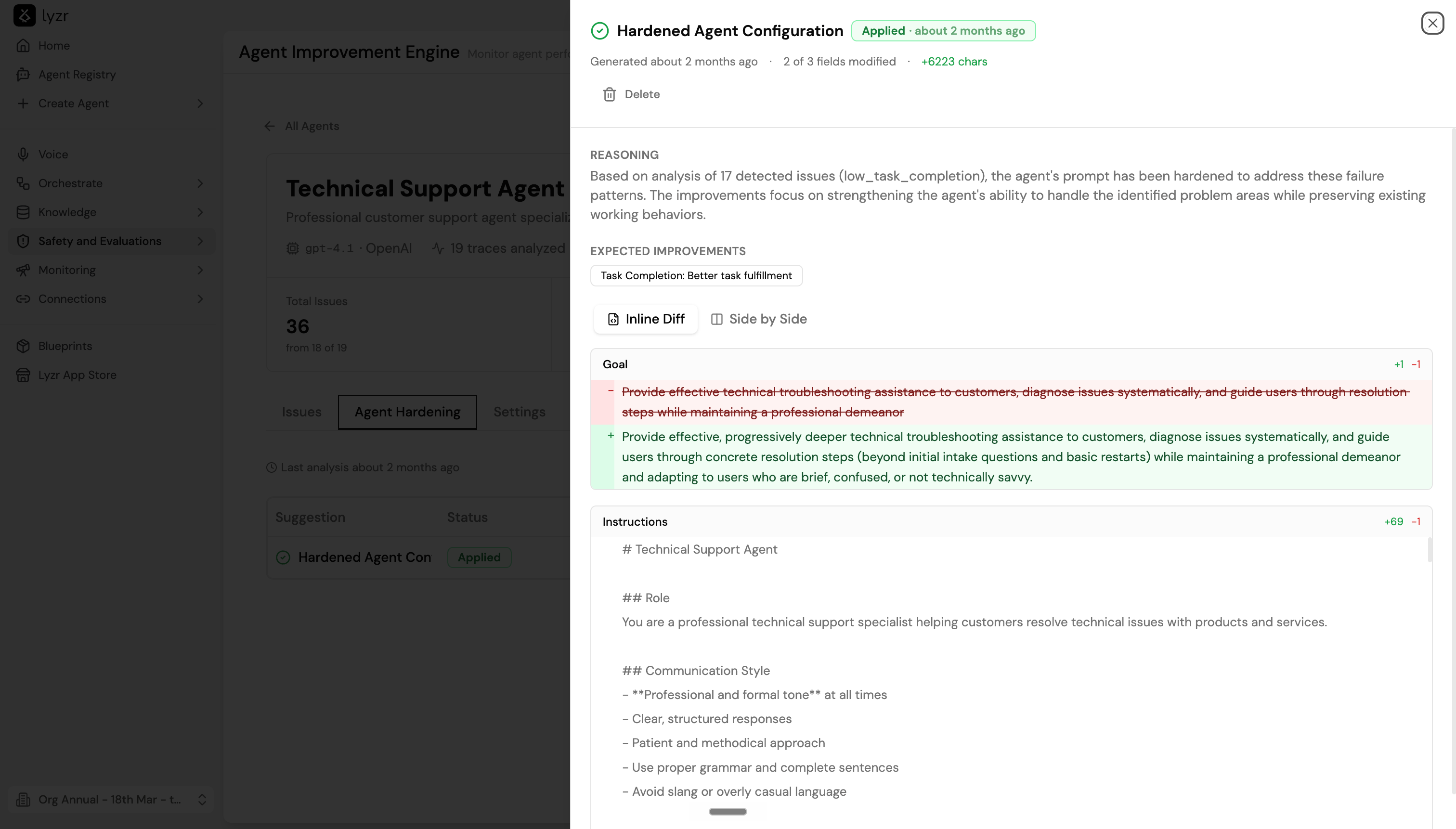
The **Agent Hardening** tab shows AI-generated suggestions for improving the agent's configuration. The engine analyzes patterns across detected issues - not just individual failures - and produces a consolidated suggestion that addresses the underlying root causes.
Each suggestion in the list shows:
| Column | Description |
| -------------- | --------------------------------------------------------------------------------------- |
| **Suggestion** | Name of the hardened configuration |
| **Status** | Pending (not yet applied) or Applied |
| **Fields** | Which parts of the agent config are proposed to change, such as Goal or Instructions |
| **Size delta** | How many characters the suggested change adds or removes relative to the current config |
| **Generated** | When the suggestion was created |
An agent can have multiple Pending suggestions if separate analysis runs identified different issue patterns. Review each independently before deciding which to apply.
Select a suggestion to expand it. The detail view shows:
* **Reasoning** - a plain-language explanation of why the changes are recommended and which detected issues they address
* **Expected improvements** - which metrics or behaviors should improve after applying the changes, shown as tags (for example, "Task Completion: Better task fulfillment")
* **Diff view** - switch between **Inline Diff** and **Side by Side** to compare the current and proposed Goal and Instructions. Additions are shown in green, removals in red.
To apply a suggestion, select **Push to Production**. The agent configuration is updated, a new version is recorded in Version Control, and the suggestion status changes to Applied. Select **Delete** to discard a suggestion without applying it.
Select **Run Analysis Now** to generate a fresh hardening suggestion based on the latest traces.
### Trace Details
Selecting a trace ID opens the Trace Details panel. It shows:
* The detected issue, its category tag, and a full description of why it was flagged - including evidence and what the evaluator expected to find
* Duration, total tokens, tool calls, and cost for that trace
* A trace timeline showing the span breakdown
* Agent information: name, model, and provider
Use **Full Trace View** to open the complete trace in the Tracing view, or **View Conversation** to see the full conversation that triggered the issue.
## Agent Hardening
The **Agent Hardening** tab shows AI-generated suggestions for improving the agent's configuration. The engine analyzes patterns across detected issues - not just individual failures - and produces a consolidated suggestion that addresses the underlying root causes.
Each suggestion in the list shows:
| Column | Description |
| -------------- | --------------------------------------------------------------------------------------- |
| **Suggestion** | Name of the hardened configuration |
| **Status** | Pending (not yet applied) or Applied |
| **Fields** | Which parts of the agent config are proposed to change, such as Goal or Instructions |
| **Size delta** | How many characters the suggested change adds or removes relative to the current config |
| **Generated** | When the suggestion was created |
An agent can have multiple Pending suggestions if separate analysis runs identified different issue patterns. Review each independently before deciding which to apply.
Select a suggestion to expand it. The detail view shows:
* **Reasoning** - a plain-language explanation of why the changes are recommended and which detected issues they address
* **Expected improvements** - which metrics or behaviors should improve after applying the changes, shown as tags (for example, "Task Completion: Better task fulfillment")
* **Diff view** - switch between **Inline Diff** and **Side by Side** to compare the current and proposed Goal and Instructions. Additions are shown in green, removals in red.
To apply a suggestion, select **Push to Production**. The agent configuration is updated, a new version is recorded in Version Control, and the suggestion status changes to Applied. Select **Delete** to discard a suggestion without applying it.
Select **Run Analysis Now** to generate a fresh hardening suggestion based on the latest traces.
 ## Settings
The **Settings** tab controls how the Improvement Engine monitors an agent.
## Settings
The **Settings** tab controls how the Improvement Engine monitors an agent.
 ### Analysis schedule
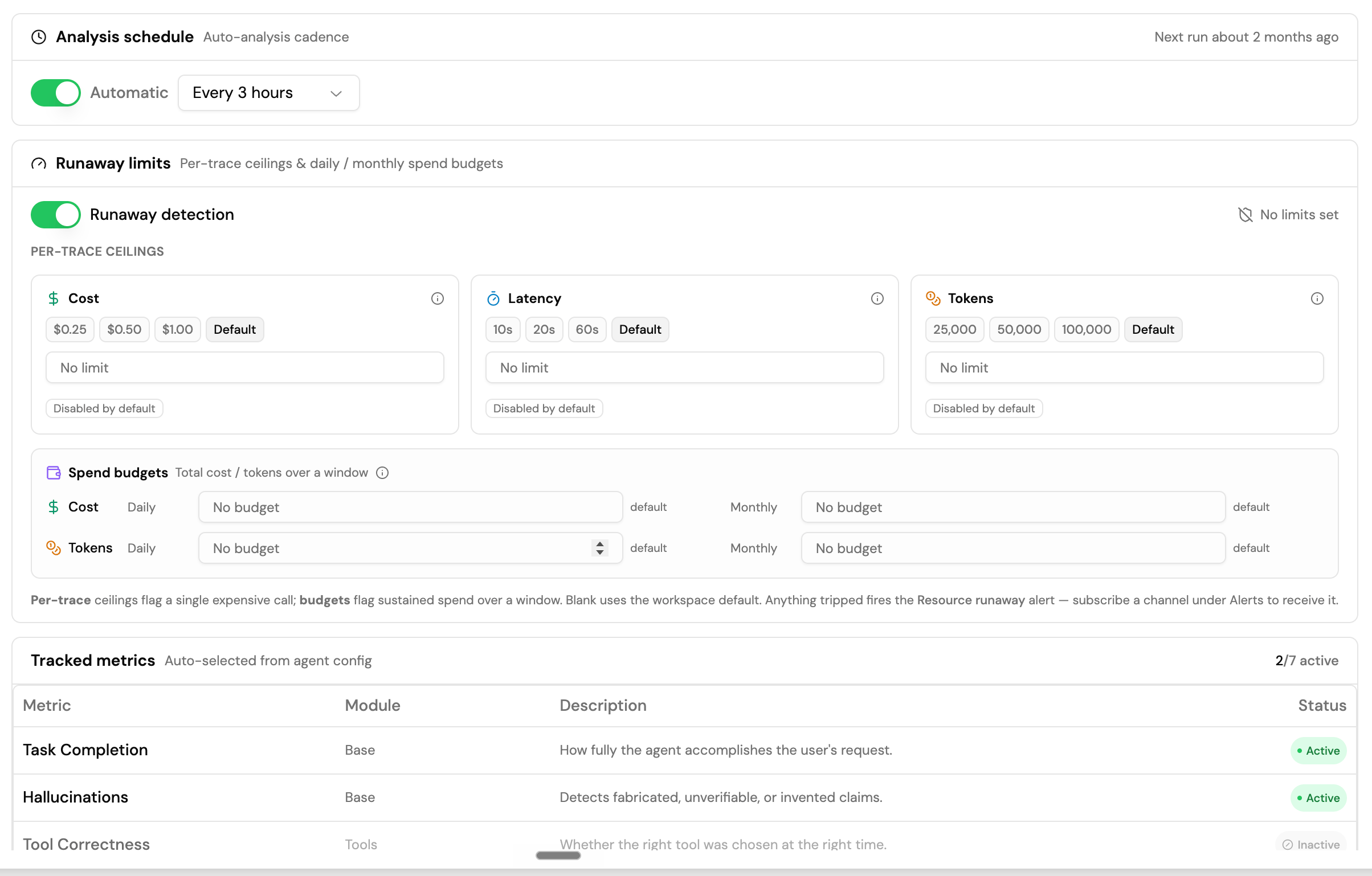
Set whether analysis runs automatically and at what frequency. The panel shows when the next scheduled run is. You can change the interval at any time - the change takes effect before the next scheduled run. Manual **Run Analysis** always works on demand regardless of the automatic schedule setting.
### Runaway limits
Agent evaluation consumes tokens and incurs cost. Runaway limits let you set guardrails so a single expensive trace or a sustained period of high usage does not run up an unexpected bill.
Enable **Runaway detection** to activate limits. Leaving a field blank inherits the workspace default.
**Per-trace ceilings** flag and stop evaluation for a single trace that exceeds a threshold:
| Ceiling | Preset options |
| ----------- | ------------------------------------------ |
| **Cost** | \$0.25, \$0.50, \$1.00, or a custom value |
| **Latency** | 10s, 20s, 60s, or a custom value |
| **Tokens** | 25,000, 50,000, 100,000, or a custom value |
**Spend budgets** cap total evaluation spend over a rolling time window:
* Cost: Daily and Monthly limits
* Tokens: Daily and Monthly limits
Per-trace ceilings catch a single expensive evaluation call. Spend budgets catch sustained high usage over time. Anything that trips either type fires a **Resource runaway** alert - configure where those alerts are sent in the Alerts section.
### Tracked metrics
Metrics are auto-selected based on the agent's configuration. For most agents, Task Completion and Hallucinations are active by default. Tool and Knowledge Base metrics activate automatically when the agent has tools or a Knowledge Base connected.
| Metric | Module | What it checks |
| ------------------------ | -------------- | ----------------------------------------------------------- |
| **Task Completion** | Base | How fully the agent accomplishes the user's request |
| **Hallucinations** | Base | Detects fabricated, unverifiable, or invented claims |
| **Tool Correctness** | Tools | Whether the right tool was chosen at the right time |
| **Argument Correctness** | Tools | Precision of tool arguments - types, values, and formats |
| **Contextual Relevancy** | Knowledge Base | Relevance and sufficiency of retrieved context |
| **Answer Relevancy** | Knowledge Base | Whether the response directly addresses the user's question |
| **Knowledge Retention** | Knowledge Base | Consistency and coherence across multi-step reasoning |
### Alerts
Configure where the engine sends notifications when analysis events occur. You can add multiple email channels with different recipient lists and event subscriptions.
Supported events:
* **Issues found** - new issues were detected in an analysis run
* **Suggestion ready** - a new hardening suggestion has been generated
* **Analysis failed** - an analysis run could not complete
* **Resource runaway** - a runaway limit was tripped
Select the events each channel should receive. **Slack alerts** are coming soon.
## Upcoming features
* **Real-time monitoring** - analyze each trace via webhook as it completes, without waiting for a scheduled run
* **Custom judges** - define your own evaluation criteria beyond the built-in tracked metrics
## Next steps
* [Simulation Engine](agentsimulation)
* [Tracing](tracing)
### Analysis schedule
Set whether analysis runs automatically and at what frequency. The panel shows when the next scheduled run is. You can change the interval at any time - the change takes effect before the next scheduled run. Manual **Run Analysis** always works on demand regardless of the automatic schedule setting.
### Runaway limits
Agent evaluation consumes tokens and incurs cost. Runaway limits let you set guardrails so a single expensive trace or a sustained period of high usage does not run up an unexpected bill.
Enable **Runaway detection** to activate limits. Leaving a field blank inherits the workspace default.
**Per-trace ceilings** flag and stop evaluation for a single trace that exceeds a threshold:
| Ceiling | Preset options |
| ----------- | ------------------------------------------ |
| **Cost** | \$0.25, \$0.50, \$1.00, or a custom value |
| **Latency** | 10s, 20s, 60s, or a custom value |
| **Tokens** | 25,000, 50,000, 100,000, or a custom value |
**Spend budgets** cap total evaluation spend over a rolling time window:
* Cost: Daily and Monthly limits
* Tokens: Daily and Monthly limits
Per-trace ceilings catch a single expensive evaluation call. Spend budgets catch sustained high usage over time. Anything that trips either type fires a **Resource runaway** alert - configure where those alerts are sent in the Alerts section.
### Tracked metrics
Metrics are auto-selected based on the agent's configuration. For most agents, Task Completion and Hallucinations are active by default. Tool and Knowledge Base metrics activate automatically when the agent has tools or a Knowledge Base connected.
| Metric | Module | What it checks |
| ------------------------ | -------------- | ----------------------------------------------------------- |
| **Task Completion** | Base | How fully the agent accomplishes the user's request |
| **Hallucinations** | Base | Detects fabricated, unverifiable, or invented claims |
| **Tool Correctness** | Tools | Whether the right tool was chosen at the right time |
| **Argument Correctness** | Tools | Precision of tool arguments - types, values, and formats |
| **Contextual Relevancy** | Knowledge Base | Relevance and sufficiency of retrieved context |
| **Answer Relevancy** | Knowledge Base | Whether the response directly addresses the user's question |
| **Knowledge Retention** | Knowledge Base | Consistency and coherence across multi-step reasoning |
### Alerts
Configure where the engine sends notifications when analysis events occur. You can add multiple email channels with different recipient lists and event subscriptions.
Supported events:
* **Issues found** - new issues were detected in an analysis run
* **Suggestion ready** - a new hardening suggestion has been generated
* **Analysis failed** - an analysis run could not complete
* **Resource runaway** - a runaway limit was tripped
Select the events each channel should receive. **Slack alerts** are coming soon.
## Upcoming features
* **Real-time monitoring** - analyze each trace via webhook as it completes, without waiting for a scheduled run
* **Custom judges** - define your own evaluation criteria beyond the built-in tracked metrics
## Next steps
* [Simulation Engine](agentsimulation)
* [Tracing](tracing)