> ## Documentation Index
> Fetch the complete documentation index at: https://docs.lyzr.ai/llms.txt
> Use this file to discover all available pages before exploring further.
# Building Agents in Studio
> Create, configure, test, and manage agents using the full Studio Builder.
Use the Studio Builder when you need full control over an agent's model, prompt, features, tools, knowledge base, and deployment settings. If you want to describe your agent in plain English first and let Studio generate an initial configuration, start with the [Conversational Builder](conversational-builder) and switch to Studio for fine-tuning.
## Create an agent
Navigate to **Agents** in the sidebar and select **New Agent**.
### Required fields
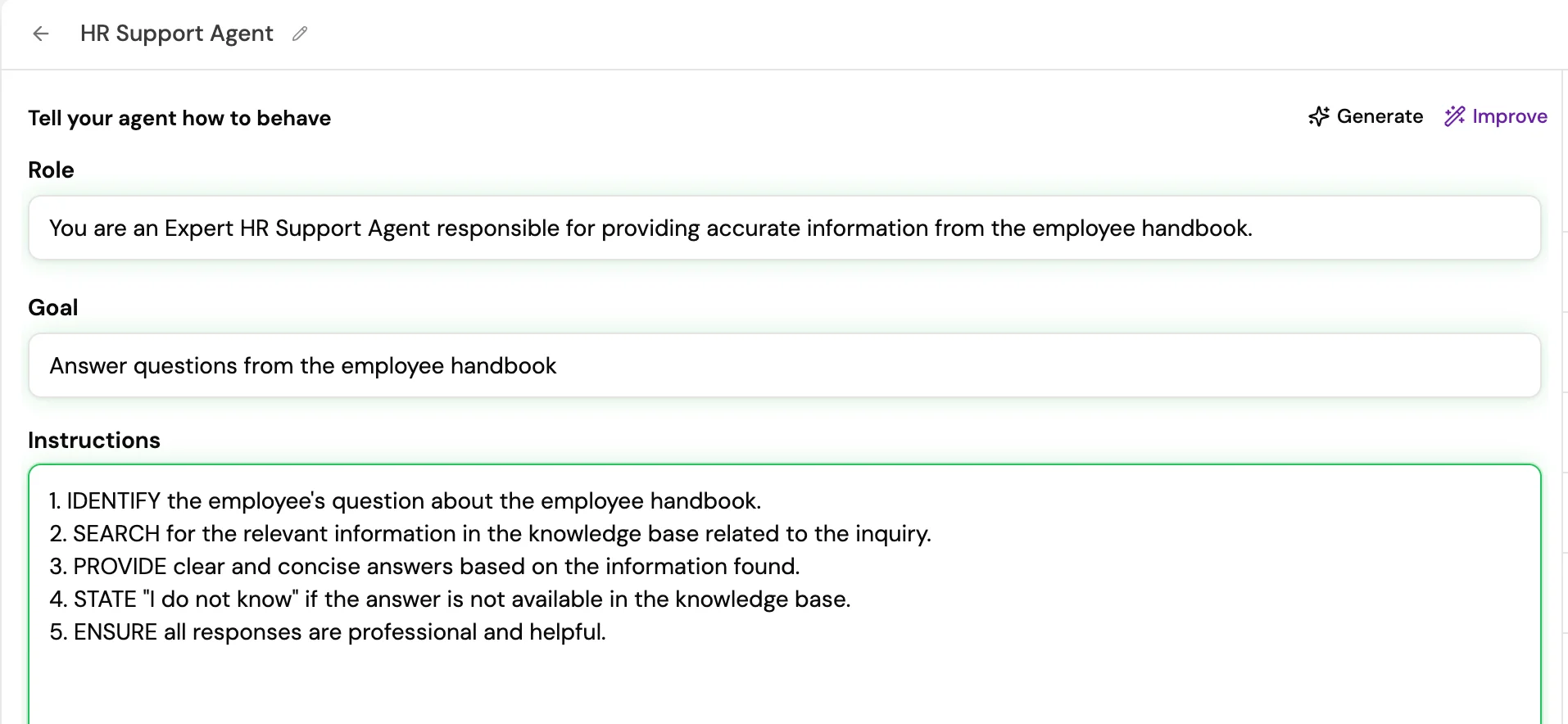
**Name** is the internal identifier shown in the agents list and in API responses.
**Model** is the LLM provider and model. Select based on latency, cost, reasoning depth, and compliance requirements.
**Role** sets the agent's domain and persona. A specific role produces better output than a generic one.
**Goal** is the agent's high-level objective. Keep it to one clear sentence.
**Instructions** define behavior, output format, edge cases, constraints, and step-by-step logic.
 ## Optional features
| Feature | Config options | Notes |
| ----------------- | ----------------------------------------- | ----------------------------------------------------------- |
| Memory | Cognis, Lyzr Memory, or Bedrock AgentCore | Cognis is recommended for new agents |
| Knowledge Base | Select one or more KBs | Classic, Graph, or Semantic |
| Tools | Pre-built, custom, or MCP tools | Choose shared or per-user auth |
| Skills | Built-in or uploaded skills | Adds reusable multi-step logic |
| Responsible AI | Select a guardrail policy | Policies are created in the Responsible AI section |
| Global Context | Select a context document | Injects org-wide instructions without per-agent duplication |
| Structured Output | Define a JSON schema | Forces machine-readable output |
| Data Query | Select a Semantic Model | Enables natural-language-to-SQL queries |
| Scheduler | Configure a time trigger | Use for recurring agent runs |
| Webhook | Configure an event trigger | Use for event-driven runs |
## Test your agent in the Playground
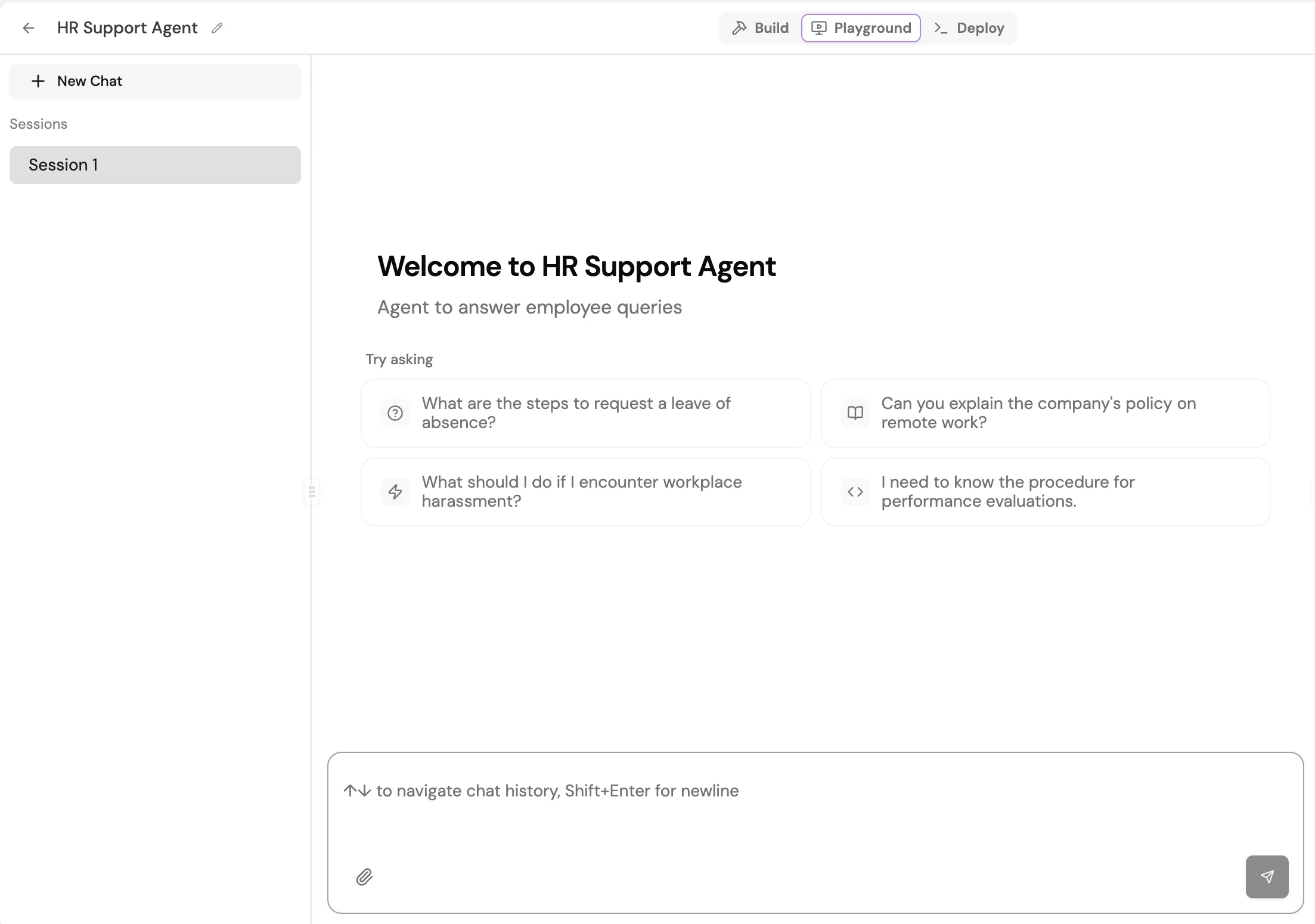
The Playground lets you send messages, upload files, and iterate on instructions before deployment. Cover the following scenarios before going to production:
* The primary use case with a typical user input
* Ambiguous or underspecified inputs to check graceful handling
* Requests the agent should decline, such as unsafe or out-of-scope queries
* Tool calls: verify the agent selects the correct tool and passes valid arguments
* Knowledge retrieval: verify the agent returns grounded, cited answers from the connected KB
## Optional features
| Feature | Config options | Notes |
| ----------------- | ----------------------------------------- | ----------------------------------------------------------- |
| Memory | Cognis, Lyzr Memory, or Bedrock AgentCore | Cognis is recommended for new agents |
| Knowledge Base | Select one or more KBs | Classic, Graph, or Semantic |
| Tools | Pre-built, custom, or MCP tools | Choose shared or per-user auth |
| Skills | Built-in or uploaded skills | Adds reusable multi-step logic |
| Responsible AI | Select a guardrail policy | Policies are created in the Responsible AI section |
| Global Context | Select a context document | Injects org-wide instructions without per-agent duplication |
| Structured Output | Define a JSON schema | Forces machine-readable output |
| Data Query | Select a Semantic Model | Enables natural-language-to-SQL queries |
| Scheduler | Configure a time trigger | Use for recurring agent runs |
| Webhook | Configure an event trigger | Use for event-driven runs |
## Test your agent in the Playground
The Playground lets you send messages, upload files, and iterate on instructions before deployment. Cover the following scenarios before going to production:
* The primary use case with a typical user input
* Ambiguous or underspecified inputs to check graceful handling
* Requests the agent should decline, such as unsafe or out-of-scope queries
* Tool calls: verify the agent selects the correct tool and passes valid arguments
* Knowledge retrieval: verify the agent returns grounded, cited answers from the connected KB
 ## Save and versions
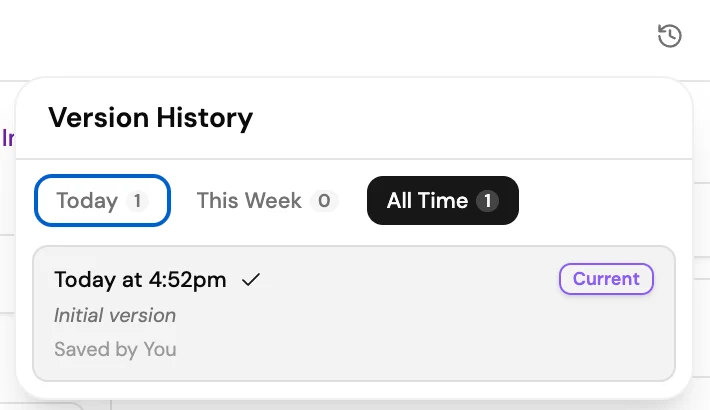
Every save creates a new version snapshot. You can review and restore previous versions from the **Version History** panel, accessible via the history icon in the top-right of the agent builder.
## Save and versions
Every save creates a new version snapshot. You can review and restore previous versions from the **Version History** panel, accessible via the history icon in the top-right of the agent builder.
 ## Deploy your agent
Once you are satisfied with the Playground results, select **Deploy** in the top navigation. The Deploy tab confirms the agent is live and gives you everything you need to integrate it.
## Deploy your agent
Once you are satisfied with the Playground results, select **Deploy** in the top navigation. The Deploy tab confirms the agent is live and gives you everything you need to integrate it.
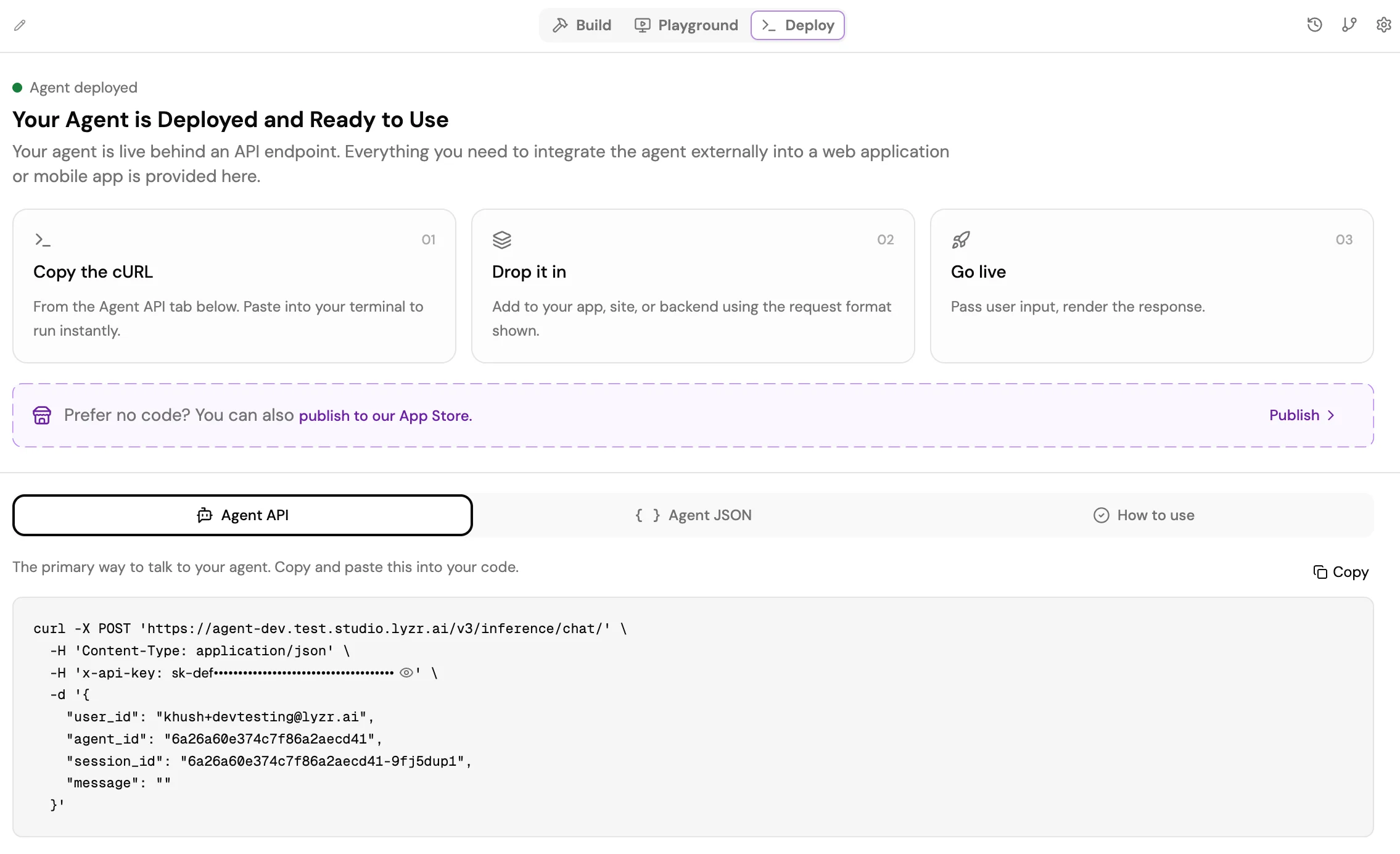 The Deploy tab provides three tabs for integration:
* **Agent API:** The primary cURL command for calling your agent. Copy it and paste it into your app, site, or backend using the request format shown.
* **Agent JSON:** The full agent configuration as JSON, for importing or version-controlling the agent definition.
* **How to use:** Inline guidance on passing user input and rendering the response.
The three-step integration flow is: copy the cURL from the **Agent API** tab, drop it into your application code, then pass user input and render the response.
To publish the agent to the Lyzr App Store without writing integration code, select **Publish** from the banner on the Deploy tab.
## Update an agent
Select the agent from the **Agents** list to open its configuration. Modify any field and select **Update** to apply the changes. Re-run tests in the Playground to confirm the updates produce the intended behavior.
## Next steps
* [Connect a Knowledge Base](../knowledgebase/studiokb)
* [Configure tools](../tools/overview)
* [Set up Responsible AI guardrails](../responsible-safe-ai/Responsible)
* [Evaluate your agent](../agent%20eval/agentsimulation)
The Deploy tab provides three tabs for integration:
* **Agent API:** The primary cURL command for calling your agent. Copy it and paste it into your app, site, or backend using the request format shown.
* **Agent JSON:** The full agent configuration as JSON, for importing or version-controlling the agent definition.
* **How to use:** Inline guidance on passing user input and rendering the response.
The three-step integration flow is: copy the cURL from the **Agent API** tab, drop it into your application code, then pass user input and render the response.
To publish the agent to the Lyzr App Store without writing integration code, select **Publish** from the banner on the Deploy tab.
## Update an agent
Select the agent from the **Agents** list to open its configuration. Modify any field and select **Update** to apply the changes. Re-run tests in the Playground to confirm the updates produce the intended behavior.
## Next steps
* [Connect a Knowledge Base](../knowledgebase/studiokb)
* [Configure tools](../tools/overview)
* [Set up Responsible AI guardrails](../responsible-safe-ai/Responsible)
* [Evaluate your agent](../agent%20eval/agentsimulation)