

Telephony Configuration
The Telephony tab is where you bridge your AI agents to the global phone network. Lyzr Studio supports top-tier providers to ensure high call quality and global reach.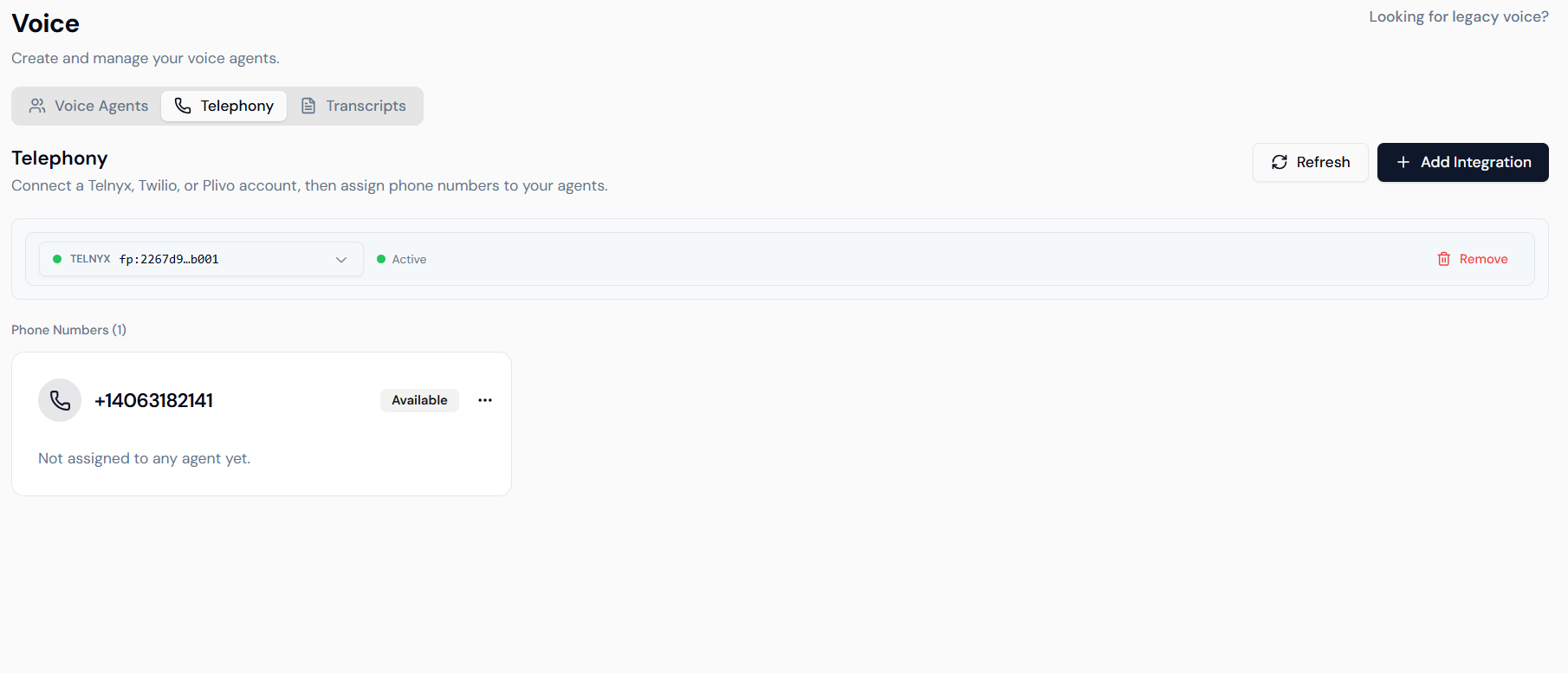
1. Adding an Integration
Lyzr Studio is provider-agnostic, allowing you to connect your existing accounts. Click + Add Integration to get started.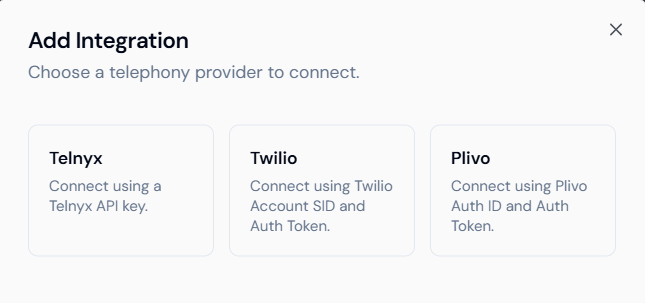
- Telnyx: Connect using a Telnyx API Key.
- Twilio: Connect using your Account SID and Auth Token.
- Plivo: Connect using your Plivo Auth ID and Auth Token.
2. Managing Phone Numbers
Once an integration is active, Lyzr automatically fetches the available numbers from your provider.- Active Status: Visual indicators show if your integration is currently
Activeand connected. - Availability: Numbers not yet linked to an agent will be marked as
Available. - Assignment: You can assign a specific agent to a number via the options menu (
...). Once assigned, any incoming call to that number will be handled by your AI agent’s logic.
Transcripts & Analytics
The Transcripts tab serves as your command center for quality assurance and conversation intelligence. It provides a macro view of system performance and a micro view of every interaction.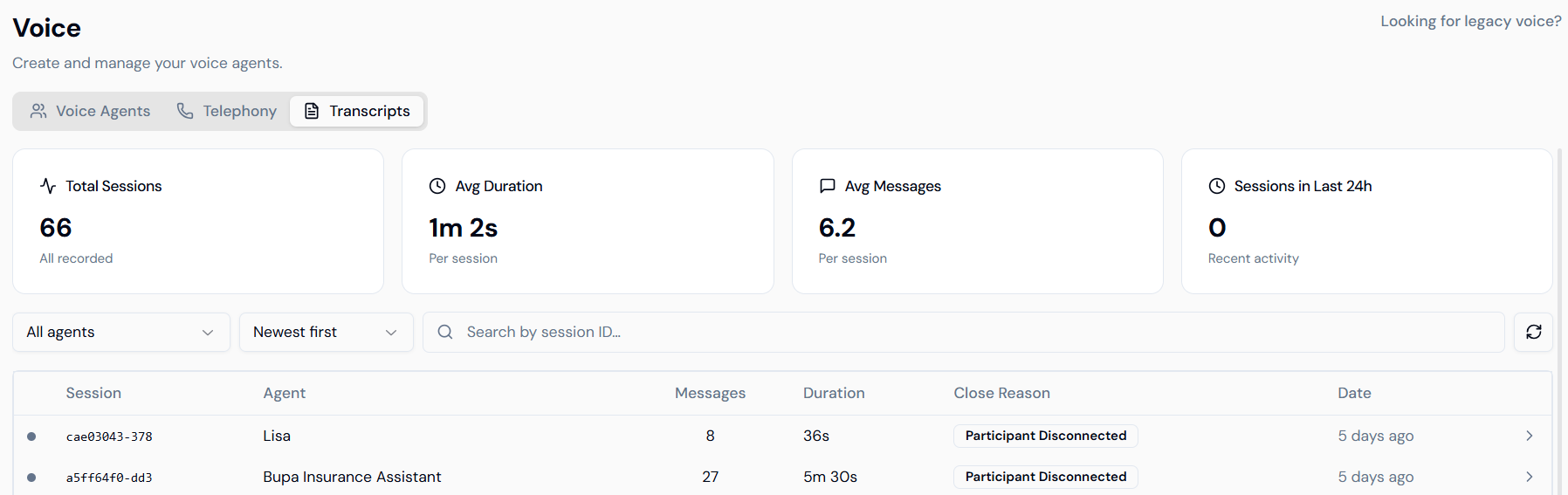
Global Metrics
Monitor the health of your voice operations with real-time KPIs:- Total Sessions: Aggregate count of all processed calls.
- Avg Duration: The mean length of your conversations, useful for identifying efficiency.
- Avg Messages: Tracks the “depth” of the conversation (number of back-and-forth turns).
- Sessions in Last 24h: Monitor recent traffic spikes or dips.
Session Logs
The logs provide a detailed audit trail including the Session ID, the specific Agent used, Message count, Duration, and the Close Reason (e.g., “Participant Disconnected”).Detailed Conversation Review
Clicking on any session ID opens the Full Transcript View. This interface is essential for debugging agent behavior and understanding user intent.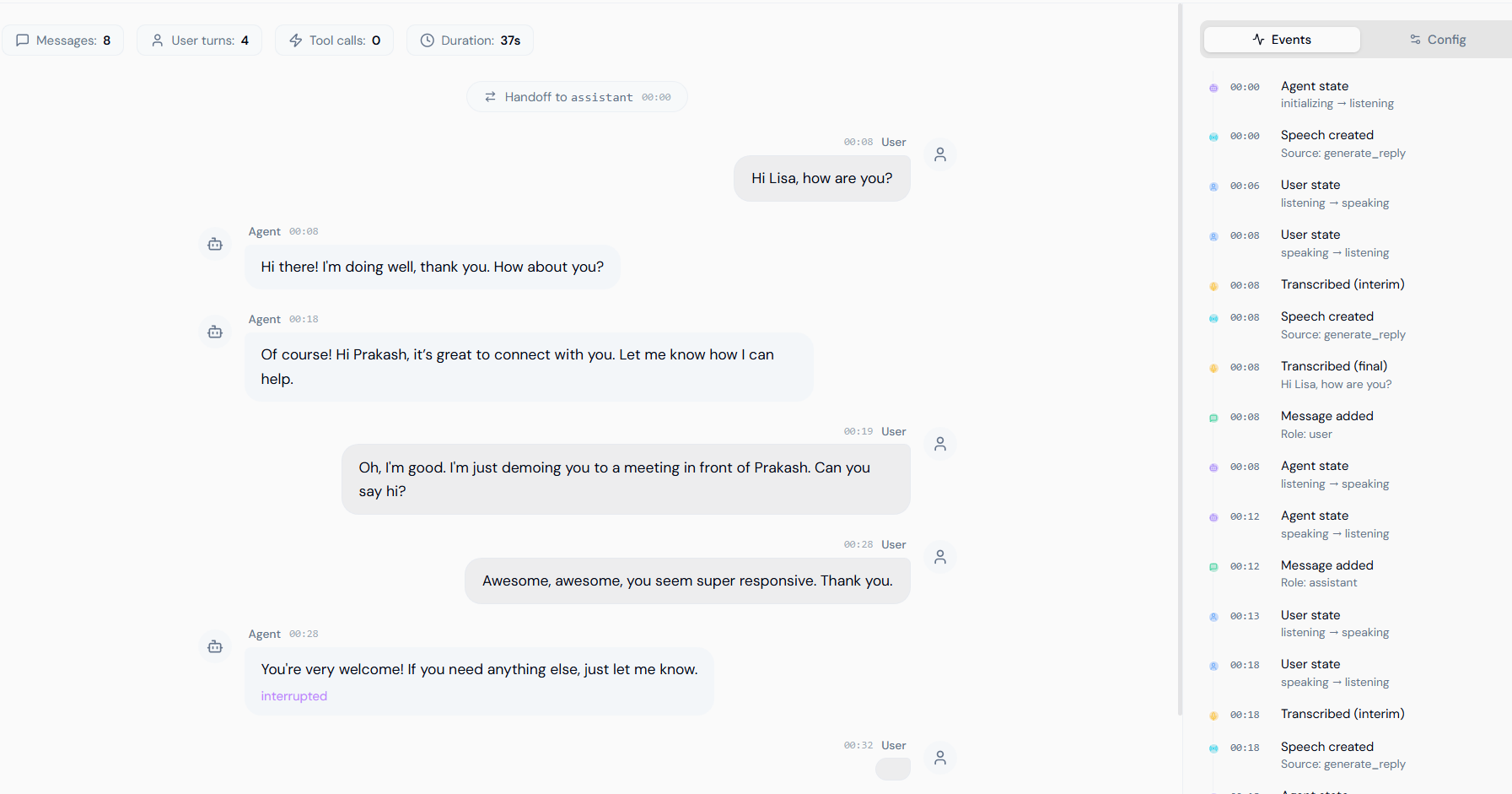
Conversation Timeline
- User Turns vs. Agent Turns: Clearly distinguishes who said what and at what timestamp.
- Interruption Tracking: The UI highlights where the agent was interrupted, helping you tune the “Realtime” sensitivity settings.
- Handoffs: Tracks if and when a session was handed off to a human assistant or sub-agent.
Event Log (Technical Sidebar)
The Events sidebar provides a raw, technical sequence of the call’s execution. This is a powerful tool for developers to see the underlying “states” of the agent:- Agent State: (e.g.,
initializinglistening). - Speech Creation: Tracks when the
generate_replysource was triggered. - Transcribed (Interim vs. Final): See the STT (Speech-to-Text) processing in real-time, showing how the agent finalized the user’s intent.
- Message Added: Confirms when a turn was successfully committed to the conversation history.
Best Practices for Monitoring
- Review “Participant Disconnected” logs: If calls are ending too abruptly, you may need to adjust your Agent Instructions to be more engaging or ask follow-up questions.
- Audit Interruptions: If the transcript shows the agent is being interrupted constantly, consider lowering the Ambience Volume or checking for background noise on the caller’s end using the Krisp Noise Cancellation feature.
- Check Transcription Accuracy: Use the detailed transcript to see if the STT is struggling with specific terms. If so, add those terms to the Pronunciation Correction module.