

The Conversational Build Logic
The builder uses an intelligent, iterative process to handle the heavy lifting of agent architecture, moving beyond simple chat-bot creation into full autonomous system design.1. Initiating the Build
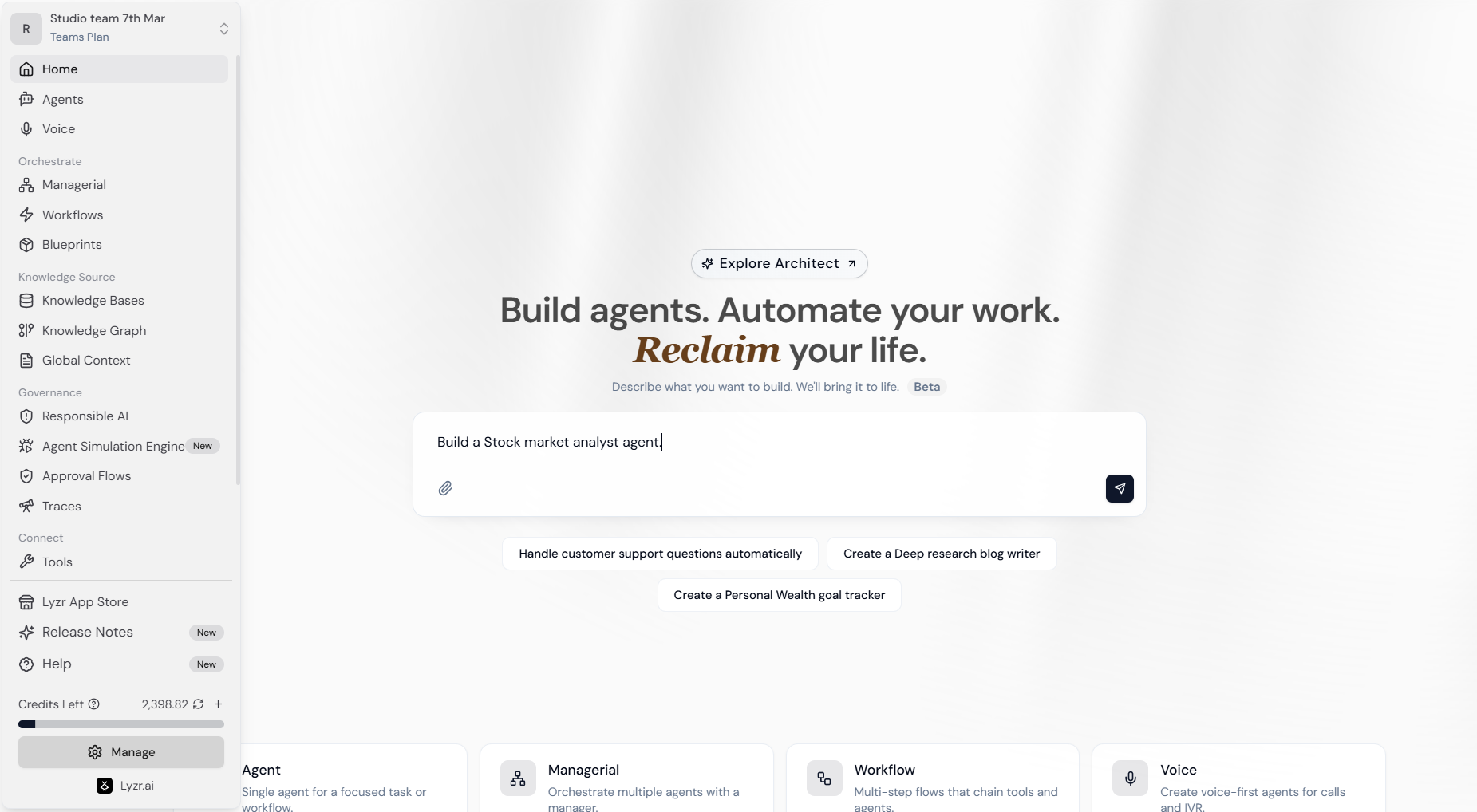
On the Studio Home screen, use the central text area to describe the agent you want to create.- Natural Language Input: Simply describe the role and task (e.g., “Build a Stock market analyst agent”).
- Architect Integration: Access advanced templates and organizational blueprints by clicking Explore Architect.
2. Feature Requirement Gathering
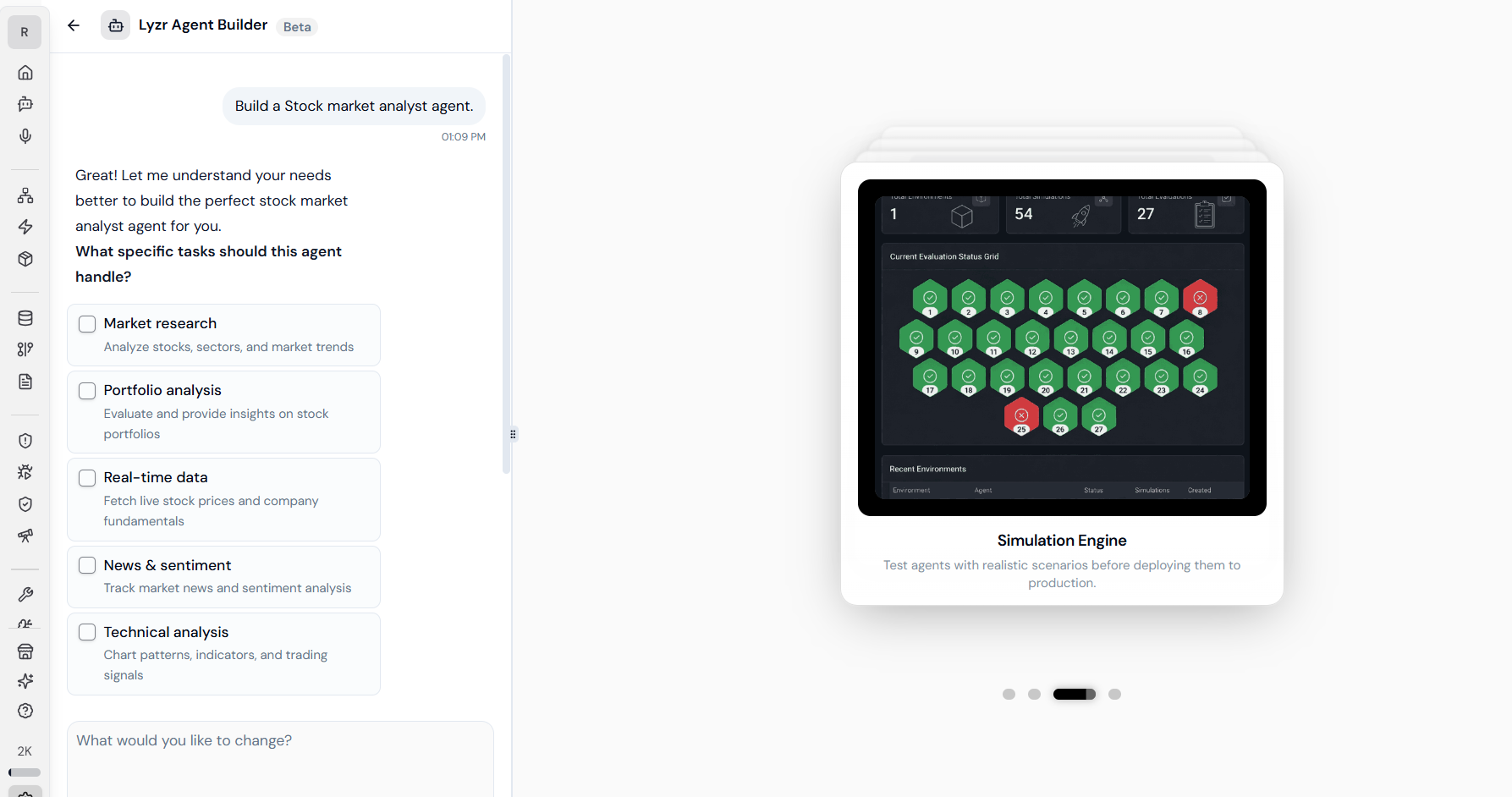
Once you submit your prompt, the Lyzr Agent Builder (Beta) initiates a specialized chat interface. It analyzes your request and presents a series of follow-up questions or checkboxes to refine the agent’s scope. For a specialized agent, the builder might suggest and verify:- Knowledge Requirements: Does the agent need a RAG pipeline for specific documents?
- Tool Access: Should the agent have permissions to fetch real-time data or interact with APIs?
- Reasoning Depth: Identifying if the task requires high-reasoning models like o1 or Claude 3.5 Sonnet.
3. Automated Infrastructure Assembly
Once sufficient context is gathered, the system automatically handles the “heavy lifting” of the backend setup:- Model Selection: Chooses the optimal LLM provider and model based on the complexity of the task.
- Knowledge Provisioning: Automatically creates or connects a Knowledge Base (RAG) or Knowledge Graph.
- Tool Orchestration: Identifies and connects relevant external tools (e.g., Slack, GitHub, or custom APIs).
- Multi-Agent Setup: Capable of establishing Managerial Orchestration to delegate sub-tasks to specialized worker agents.
Core Capabilities & Customization
Modular Building Blocks
While the builder automates the initial setup, you retain full control to refine the output through the Studio dashboard:- Manual Overrides: At any point, you can transition to the granular Agent Builder screen for manual tweaking of prompts and features.
- Skill Attachment: Enhance agents with modular Skills—reusable blocks of logic or tool integrations that make agents production-ready.
- Memory Management: Toggle between Lyzr Cognis (cross-session memory) and Lyzr Memory (adjustable short/long-term summarization).
Multi-Channel Deployment
Every agent built via the conversational path is instantly ready for enterprise use:- Web/Mobile Mini-Apps: Package your agent as a shareable app for internal teams or customers.
- API-First Integration: Every agent auto-generates an OpenAPI 3.1 endpoint and gRPC stubs, ready for microservices or protocols like MCP.
Integrated Governance & Testing
Lyzr ensures that agents built via natural language remain safe through native integration with the Safe & Responsible Module.Simulation & Agent Hardening
- Automated Scenarios: The system generates realistic test cases and “personas” to stress-test your agent’s logic.
- Metric Scoring: Responses are evaluated against metrics like Task Completion, Hallucination, and Faithfulness.
- Hardening: Lyzr analyzes failures and recommends optimal configuration updates to improve accuracy before production rollout.
Responsible AI Guardrails
Activate the Safe/Responsible-AI lattice with a single click to ensure compliance and ethical operation:- PII Redaction: Automatically masks sensitive data like Credit Card numbers, SSNs, and personal emails.
- Prompt Injection Protection: Detects and blocks malicious attempts to override agent instructions.
- Hallucination Manager: Employs a Reflection Mechanism where the agent critically assesses its own response against instructions before delivery.
Next Steps
Once the Builder completes the setup, you can perform the following actions to finalize your deployment:- Review in Studio: Fine-tune the generated Agent Role, Goal, and Instructions.
- Test in Simulation: Run a batch of simulations to see performance against “edge-case” user inputs.
- Deploy: Connect your agent to your preferred interface (Web, Slack, or Twilio) using the auto-generated API keys.