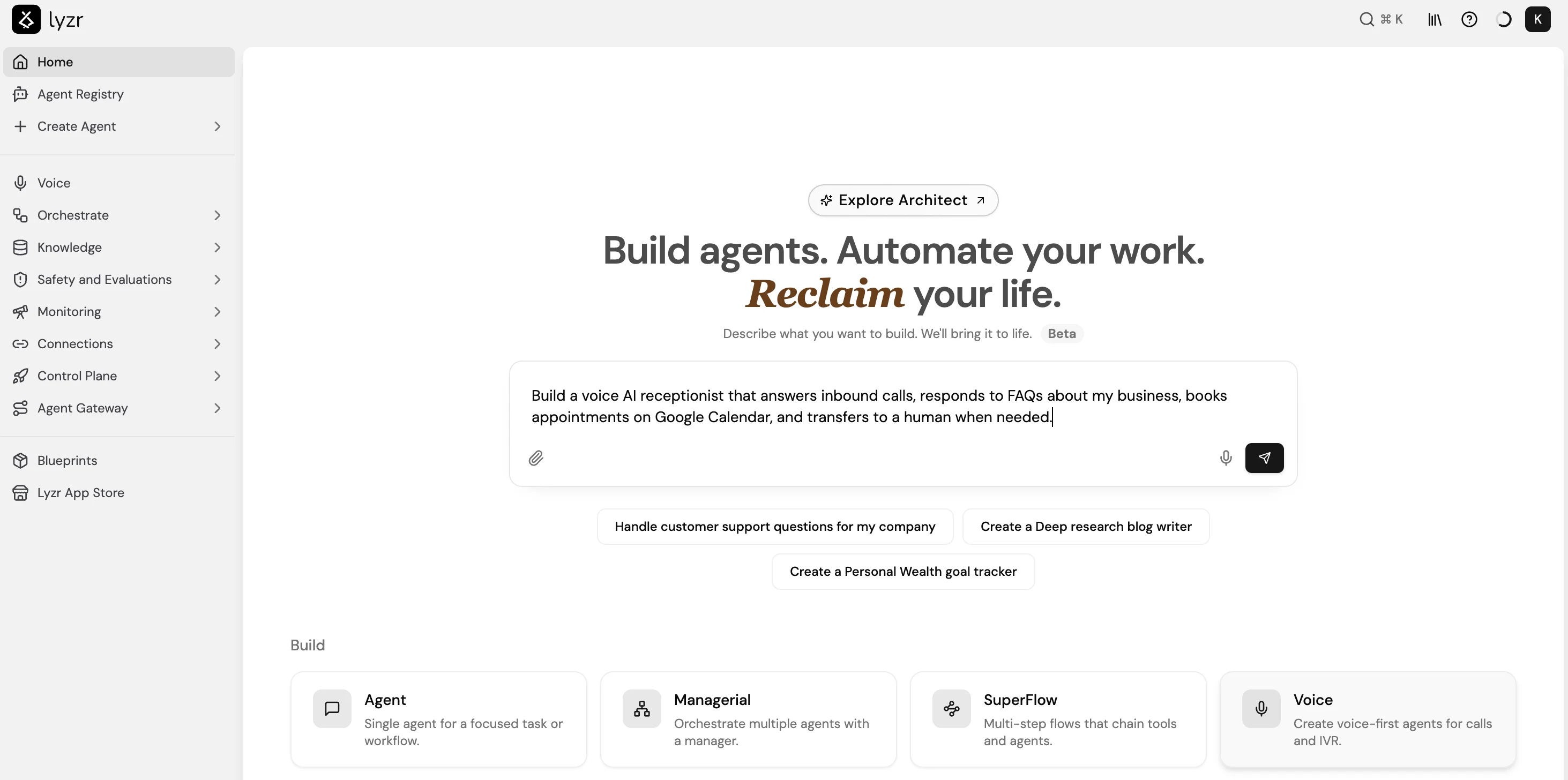
What the Conversational Builder configures
From a natural-language description, the builder can set up the following:- Agent role, goal, and instructions
- Model selection
- Knowledge Base setup
- Tool connections
- Manager Agent orchestration for multi-agent setups
Build an agent conversationally
- On the Studio home screen, type a description of the agent you want to build. Be specific about the domain, the task, and who the agent is for.
- Answer the follow-up questions Studio asks. These typically cover tone, tools the agent needs, what data it should have access to, and how it should handle edge cases.
- Review the generated configuration. Studio populates the role, goal, and instructions based on your answers.
- Continue refining in the same conversation. You can add constraints, adjust the persona, or request changes in plain English.
- Select Open in Builder to switch to the full Studio Builder for any setting the conversational flow does not expose.