

Browse and deploy a Blueprint
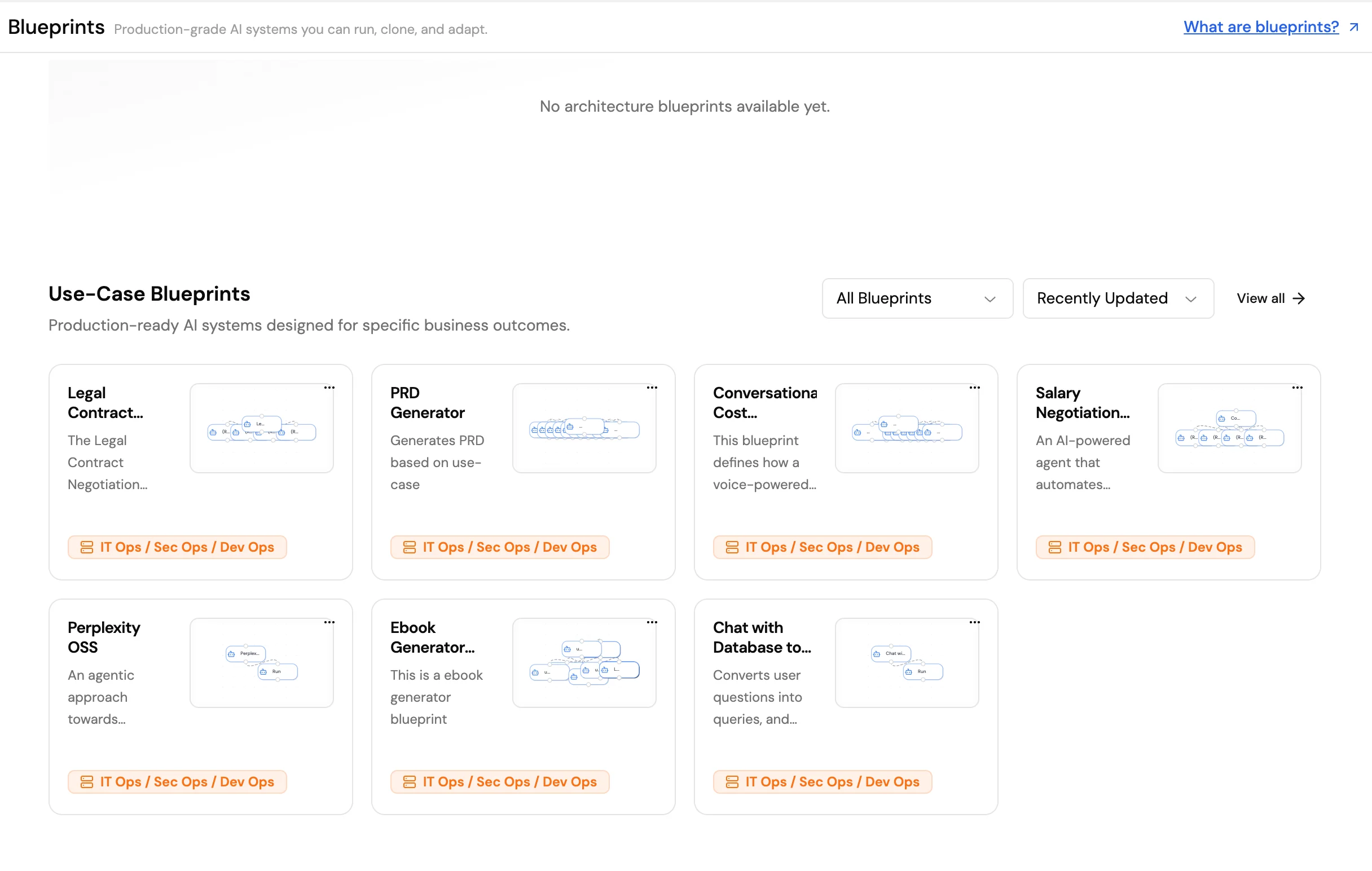
- Select Blueprints in the Studio sidebar to open the Blueprint library.
- Filter by category (Sales, Support, HR, Finance, Engineering, Research) or search by use case.
- Select a Blueprint to preview its configuration: role, goal, tools, expected KB structure, and example conversations.
- Select Use Blueprint. The agent is created in your workspace with the Blueprint’s configuration pre-filled.
- Customize the configuration: update the instructions for your product, connect your Knowledge Base, adjust the model, and run the included test scenarios to verify behavior.
What a Blueprint includes
Blueprint categories
Blueprints cover common enterprise patterns:- Customer Support: FAQ bot, ticket triage, escalation routing
- Sales: Lead qualification, outreach drafter, competitive research
- HR: Policy Q&A, onboarding assistant, benefits advisor
- Finance: Expense analyzer, invoice processor, budget reporter
- Engineering: PR reviewer, incident responder, documentation generator
- Research: Market research, literature review, competitor monitoring
Save an agent as a Blueprint
If you have built an agent that works well and want to share the pattern across your organization:- Open the agent and select the overflow menu (⋯).
- Select Save as Blueprint.
- Enter a name, description, and category.
- Choose visibility: Organization (visible only to your workspace) or Public (submitted to the Lyzr Blueprint library for review).